


As of November 20, 2026, installation is available only in the EU and Japan.
* AltStore PAL is also offered in Brazil.
Read this before you start
- You can install the app only in countries and regions where sideloading is permitted. Using a VPN does not change this.
- iPad® is not supported. Please use an iPhone®.
Your save data is shared across your Habbit ID. You can keep playing with the save data you have used on Android, Windows, or Mac, and the content is identical to the versions for other operating systems.
The iPhone version is distributed through AltStore PAL, a store separate from Apple’s App Store®. This guide walks you through every step with screenshots, from setting up the store to launching the app.
?What is AltStore PAL?
AltStore PAL is an app store for iPhone (an alternative app marketplace) operated by AltStore, LLC in the United States.
- It operates with Apple’s authorization. The store is authorized through the process Apple defines, and every app it distributes has passed Apple’s review (notarization). This app has been notarized as well.
- It is supported by Epic Games. In August 2024 it was selected for Epic MegaGrants, the grant program run by Epic Games, the company behind Fortnite, and received funding. Thanks to this, the store is free to use.
- It is a legitimate, law-based way to get apps. It has been available in the EU since April 2024, and in Japan since December 2025, when the Mobile Software Competition Act took full effect.
- No modification of your device is needed. You do not jailbreak anything. Setup uses only standard iPhone features. It is also not a TestFlight build repurposed from an iOS testing environment.
Before you begin
- Your device is physically located in the EU or Japan.
- Your App Store account is set to an EU country or Japan.
- Use Safari®, Chrome™, or Vivaldi as your browser.
- This app is intended for users aged 18 and over.
The latest requirements for iOS™ versions and regions are shown on AltStore’s official download page (altstore.io/download).
Source URL to add
This is the URL you enter in Step 7. Tap the button to copy it.
https://api.anothereidos-r.net/download/iOS/apps.jsonSteps 1–5Install AltStore PAL
The screenshots show the Japanese interface. Tap the area outlined in red. Button and menu names on your device may differ.
Step 1
Download from the official AltStore site
Open altstore.io/download in Safari on your iPhone and tap “Download”.
altstore.io/downloadOpen page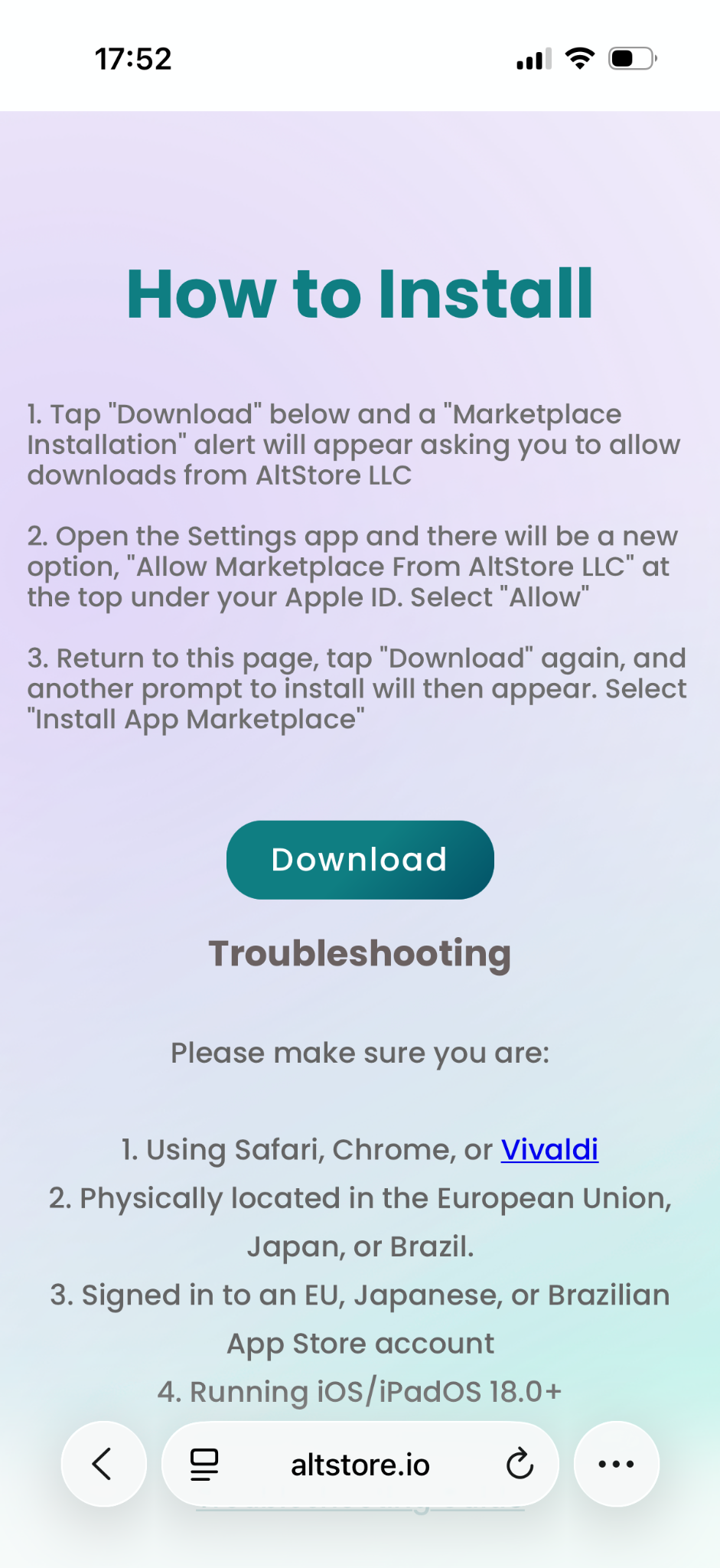
Step 2
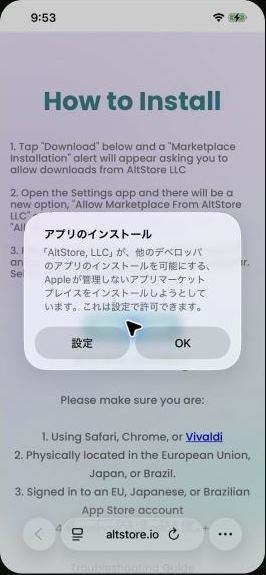
Open Settings
An “App Installation” notice appears. Tap “Settings”.
Step 3
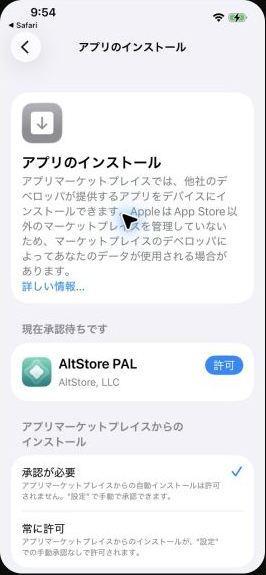
Allow AltStore PAL
In the Settings app, the “App Installation” screen shows AltStore PAL waiting for approval. Tap “Allow” on the right.
Step 4
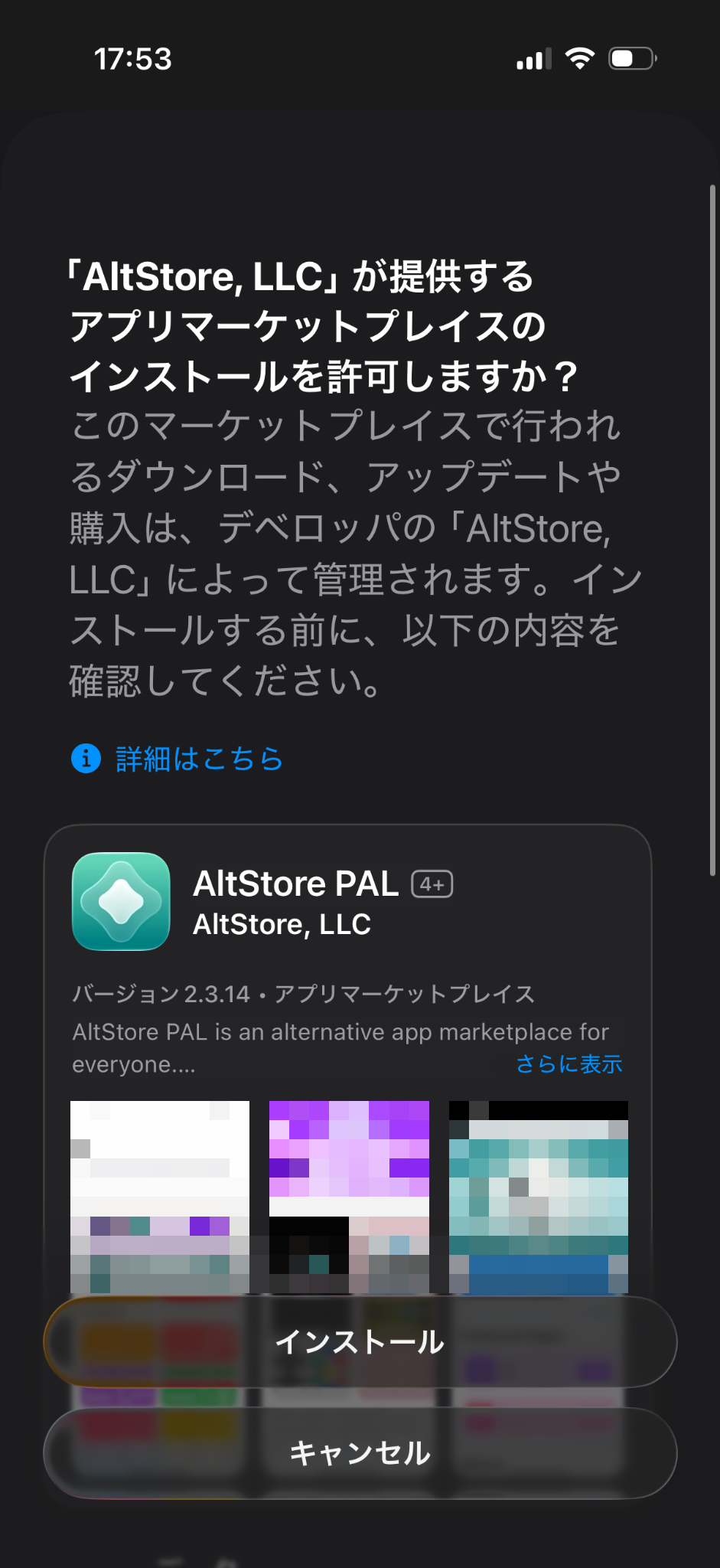
Check the developer and install
A screen asks whether to allow an app marketplace from “AltStore, LLC” to be installed. Check that the developer is AltStore, LLC, then tap “Install”.
Step 5
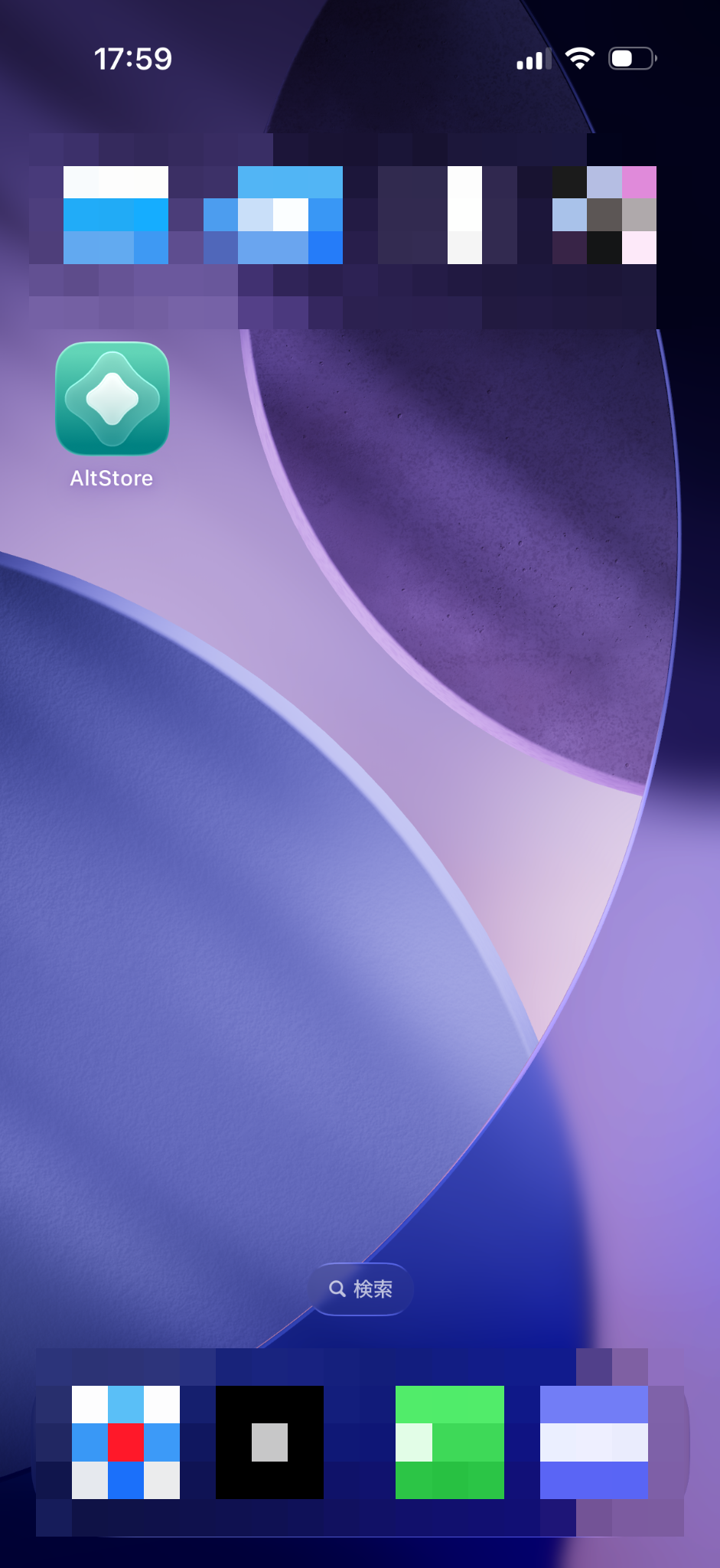
Open AltStore
Tap the AltStore icon that was added to your Home Screen. If you are asked to allow notifications, you can continue without allowing them.
Steps 6–9Add the Another Eidos R source
Step 6
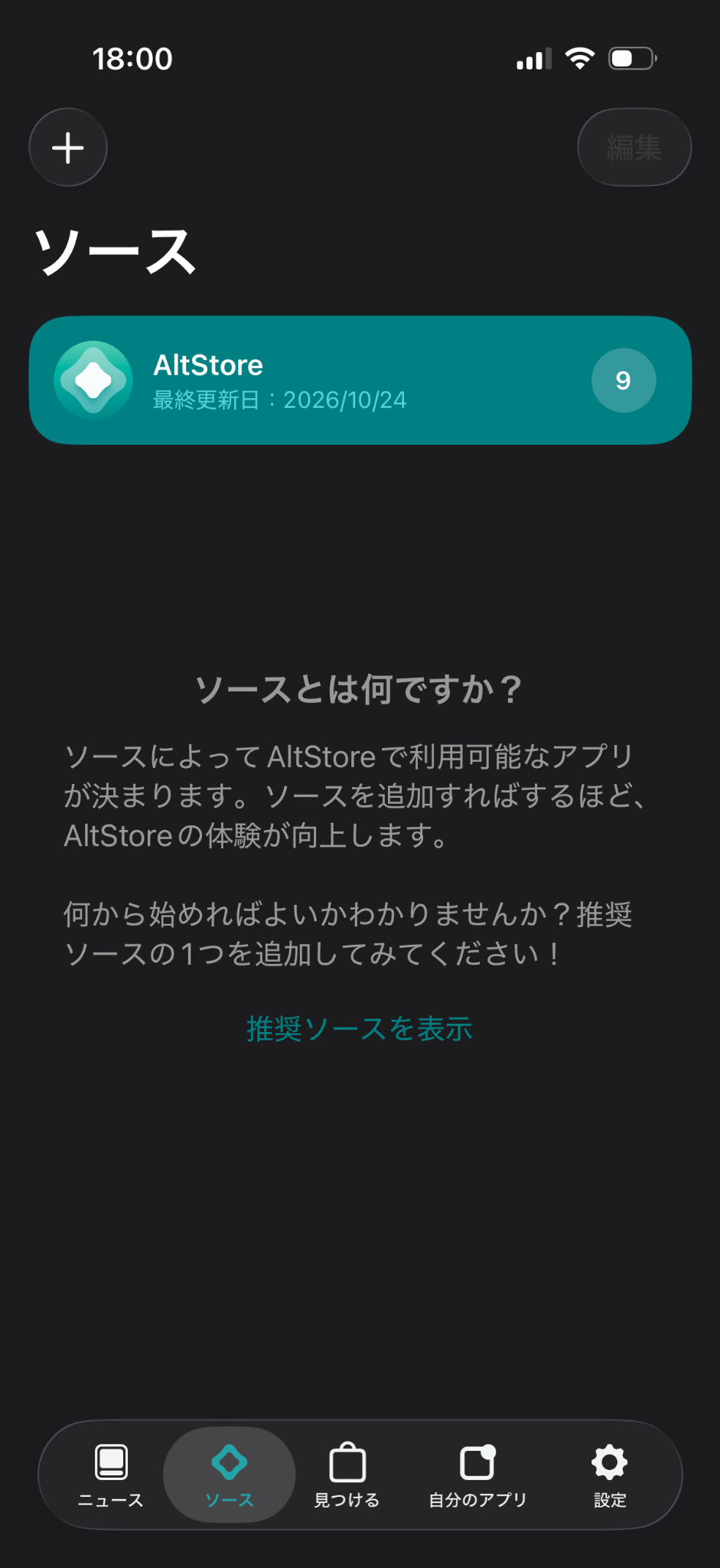
Open the Add Source screen
Open “Sources” from the tabs at the bottom, then tap “+” at the top left.
Step 7
Enter the source URL
Paste the following URL into the input field.
https://api.anothereidos-r.net/download/iOS/apps.json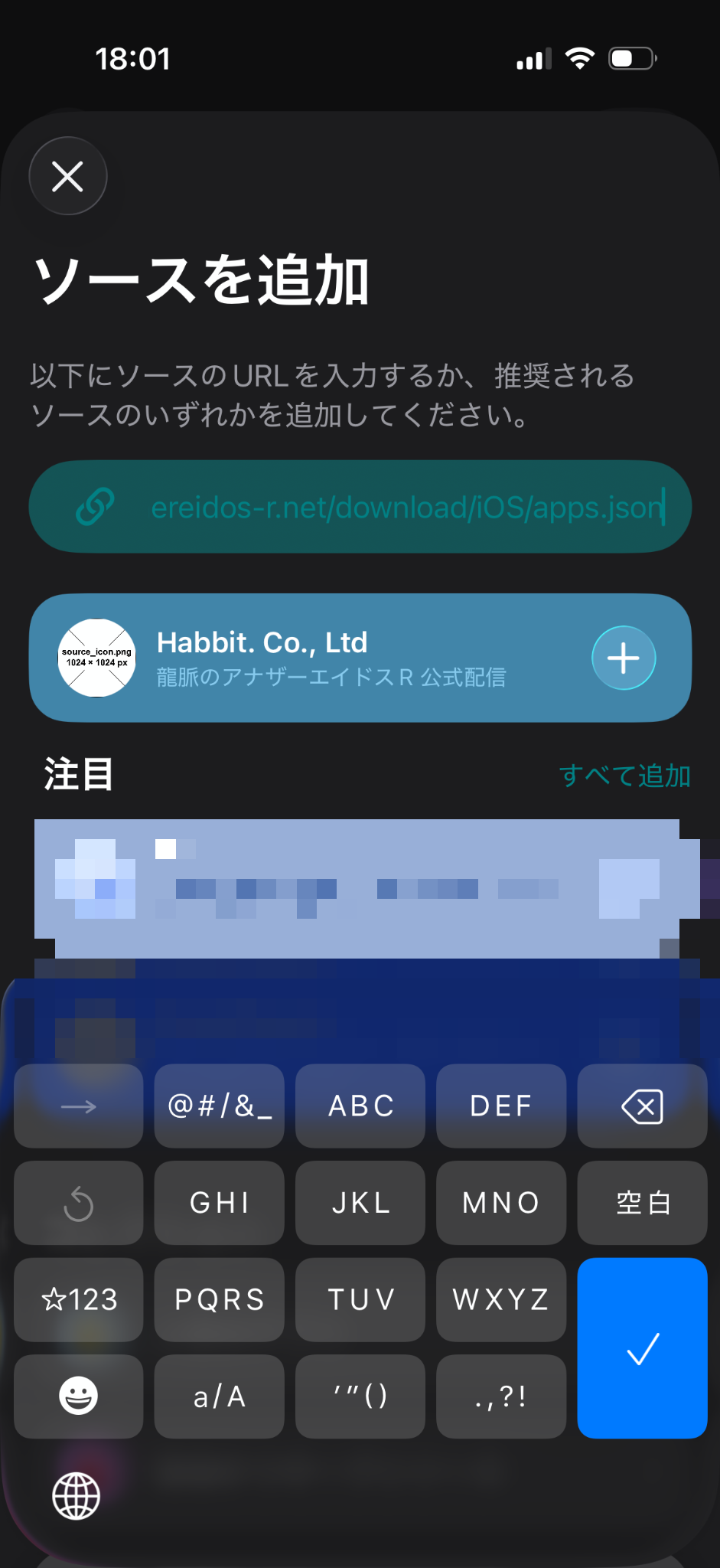
Step 8
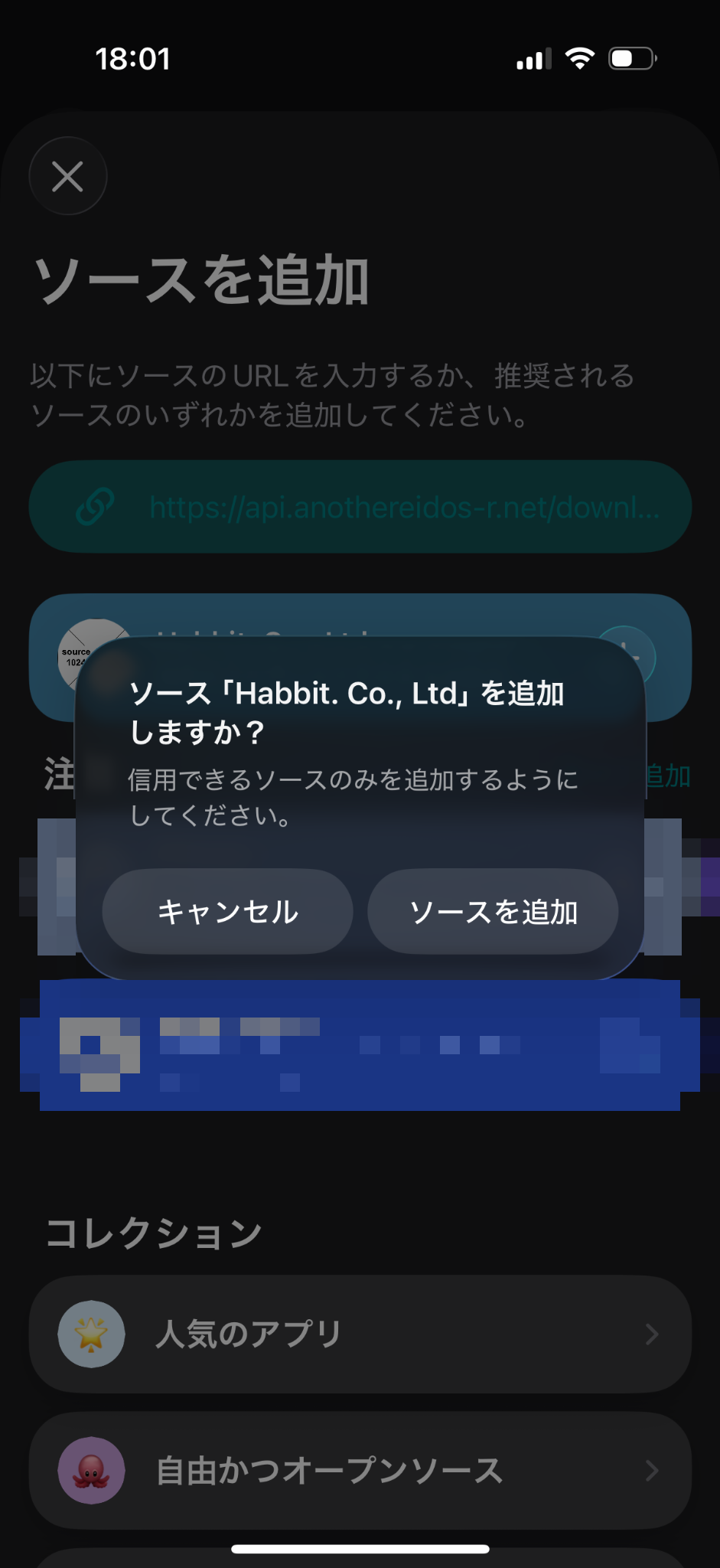
Add the source
A dialog asks whether to add the source “Habbit. Co., Ltd”. Check the name, then tap “Add Source”.
Step 9
Open the source you added
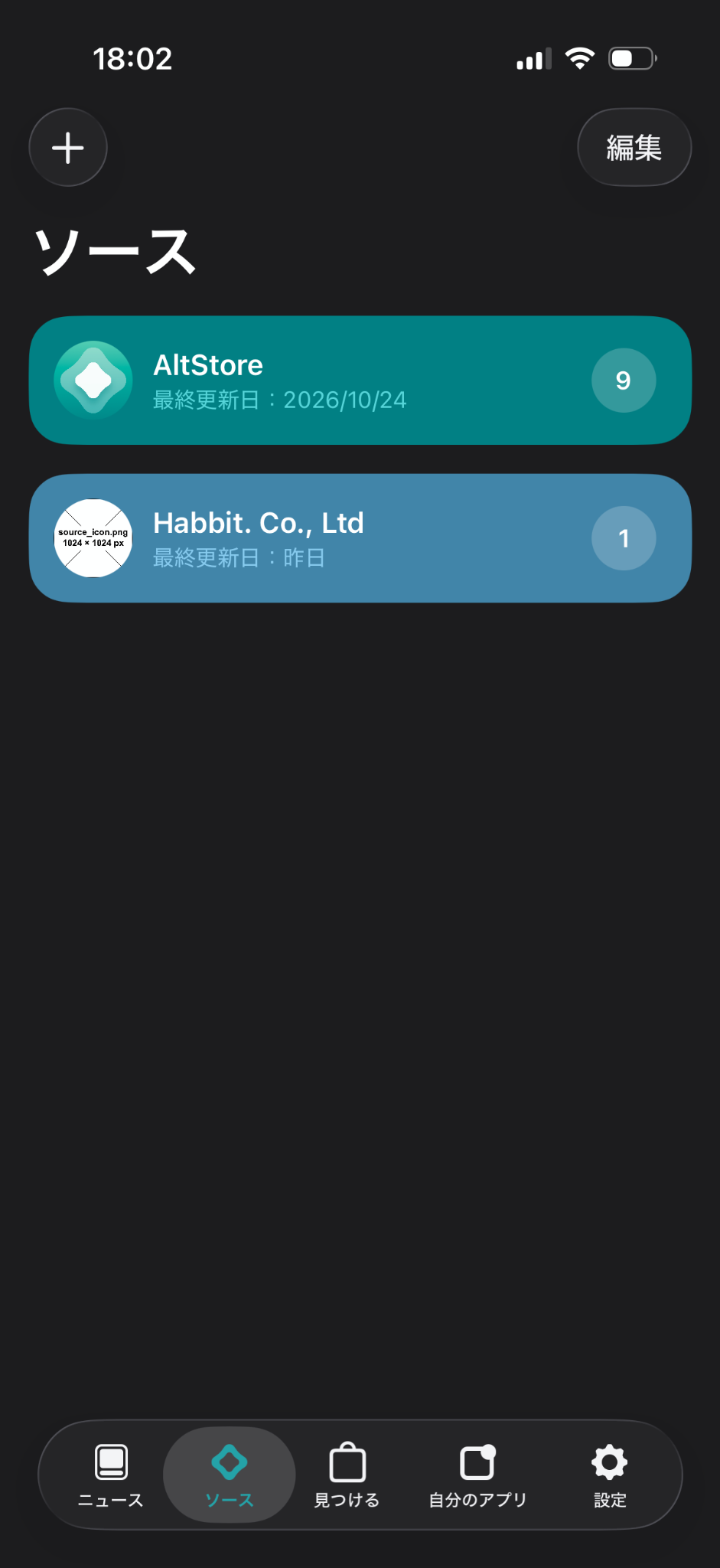
Habbit. Co., Ltd now appears in your list of sources. Tap it to open it.
Steps 10–13Install and launch the app
Step 10
Select Another Eidos R
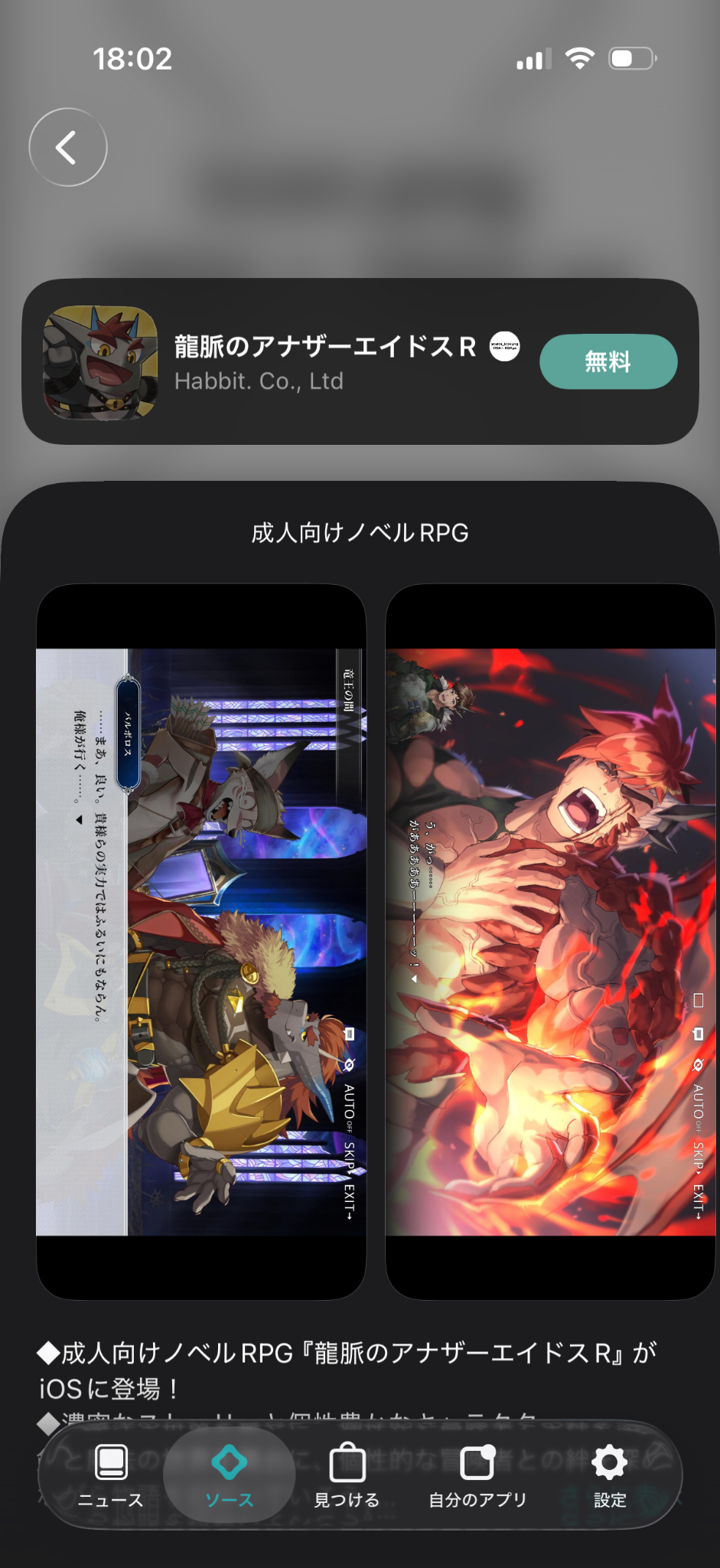
Open “龍脈のアナザーエイドスR” inside the source, then tap “Free” at the top right.
Step 11
Confirm the installation
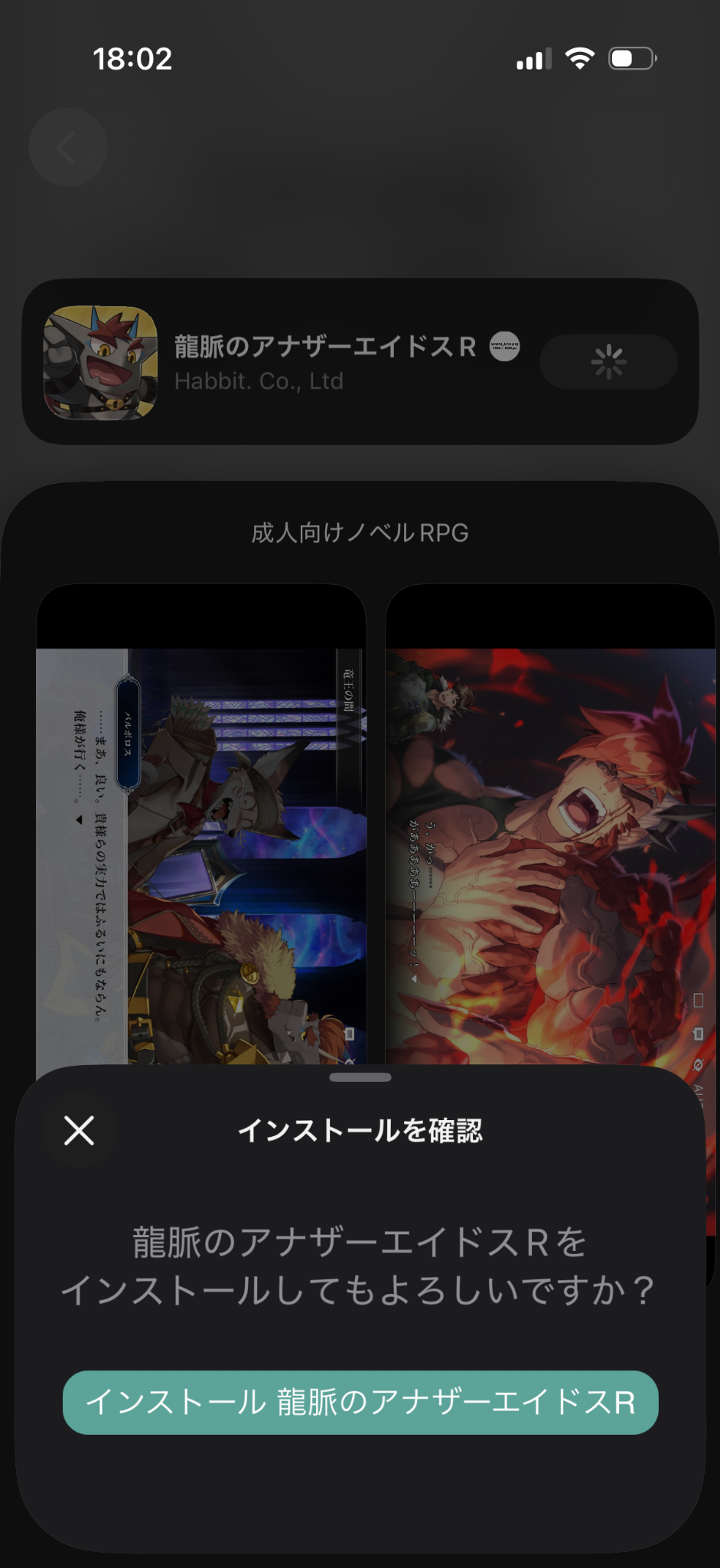
A confirmation panel appears at the bottom of the screen. Tap the “Install” button.
QIf installation stops here
If the app age rating limit in Screen Time on your iPhone is set to 18+, Another Eidos R cannot be installed, because it is classified as “Unrated”. Check the same setting if the app does not start when you tap its icon after installing.
- Open Settings → Screen Time → Content & Privacy Restrictions.
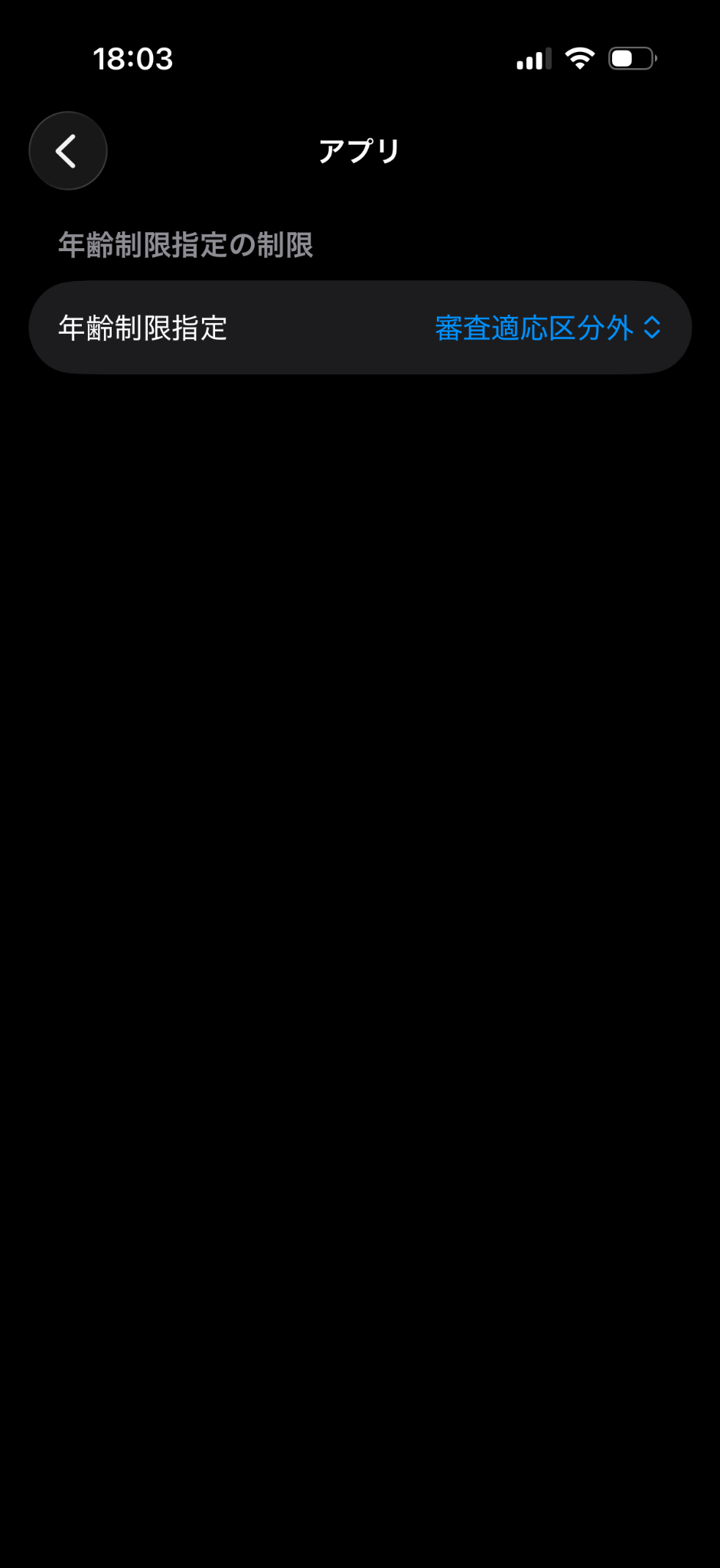
- Open “App Store, Media, Web, & Games” → “Apps”.
- Change the age rating setting to “Unrated” (shown as 審査適応区分外 in the screenshots).
- Go back to Step 10 and install again.
 Setting shown as Unrated
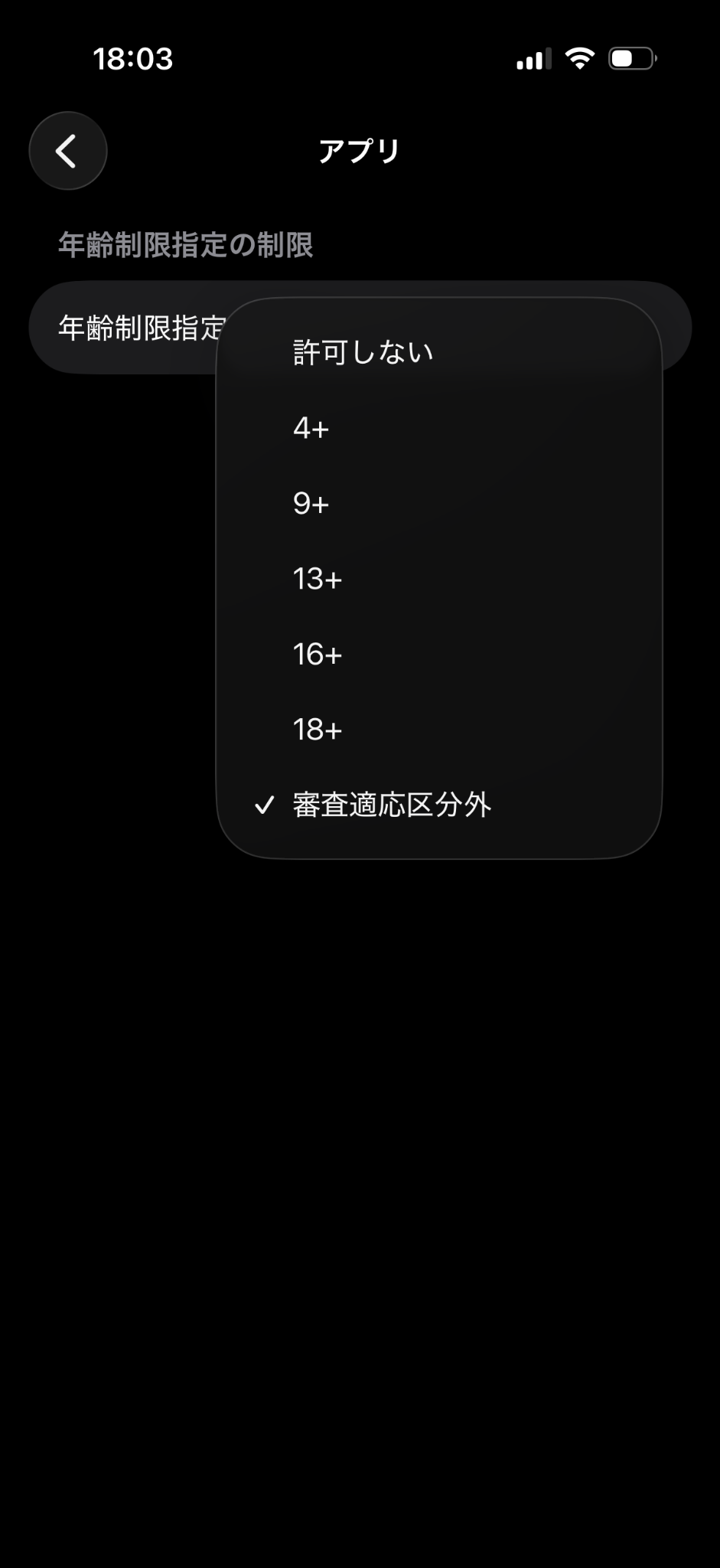 Choosing Unrated
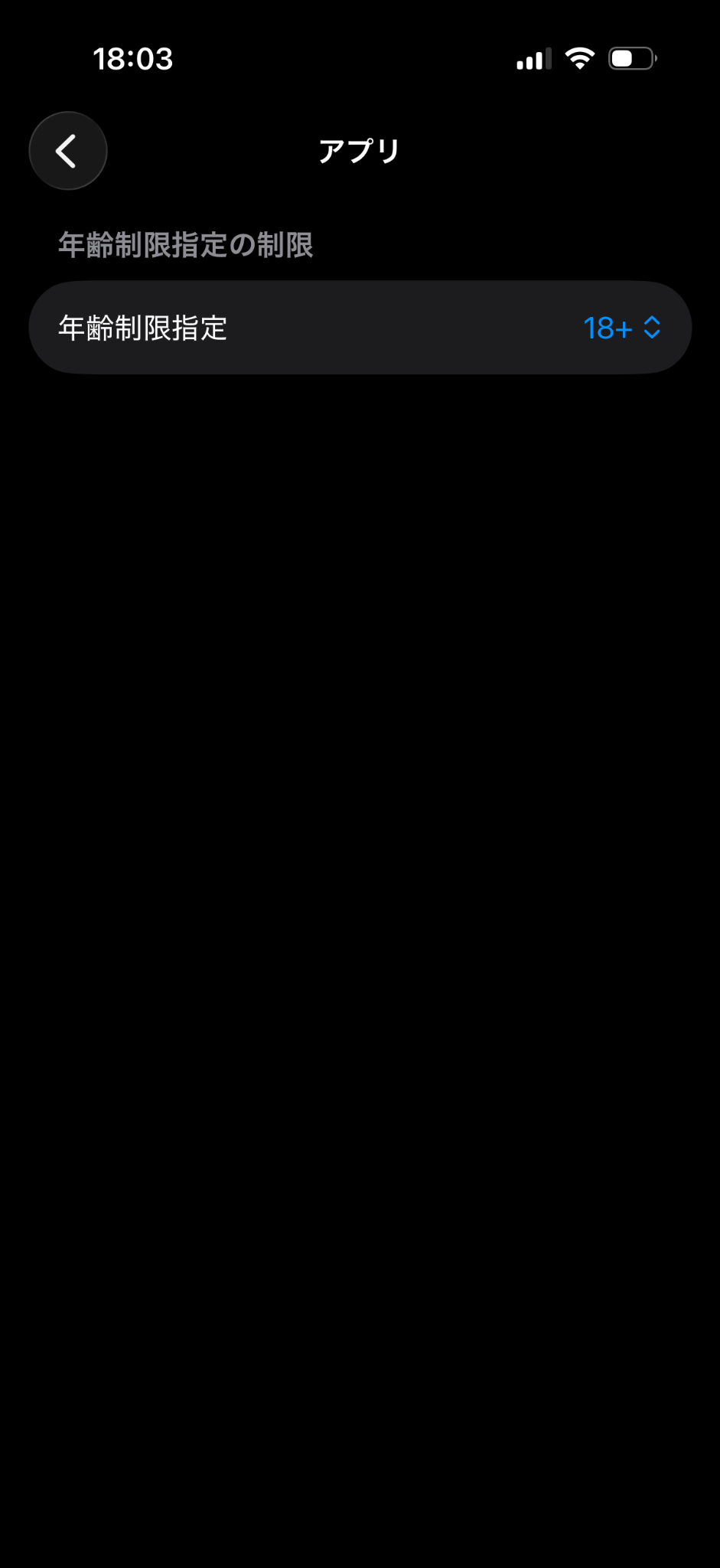 Setting shown as 18+
This setting also applies to other apps in the same rating category. If someone else manages your device, check with them before changing it.
Step 12
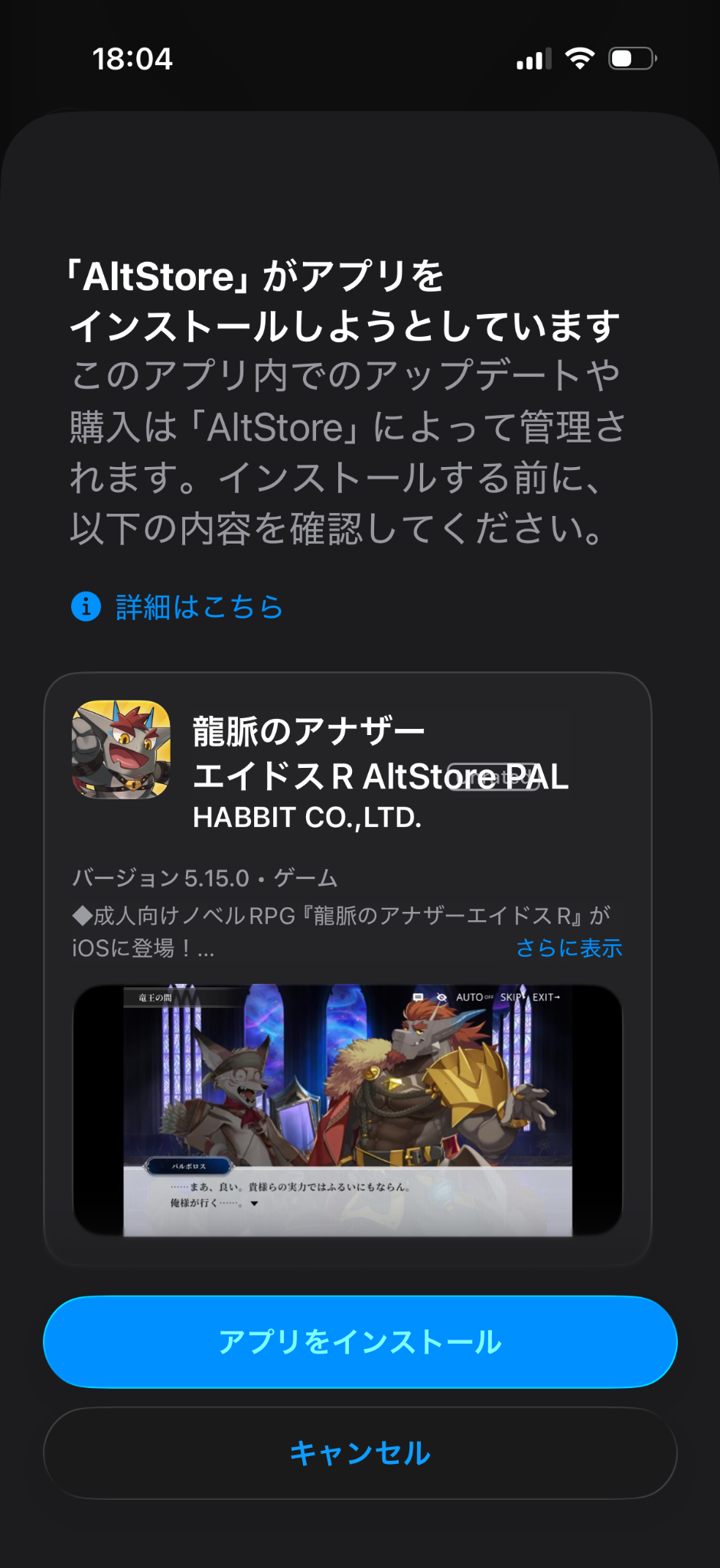
Install from Apple’s confirmation screen
A screen says that “AltStore” is trying to install an app. Check the app name and the developer (HABBIT CO.,LTD.), then tap “Install App”.
Step 13
Open the app
When installation finishes, the button changes to “Open”. Tap it. After one more confirmation screen, the app starts.
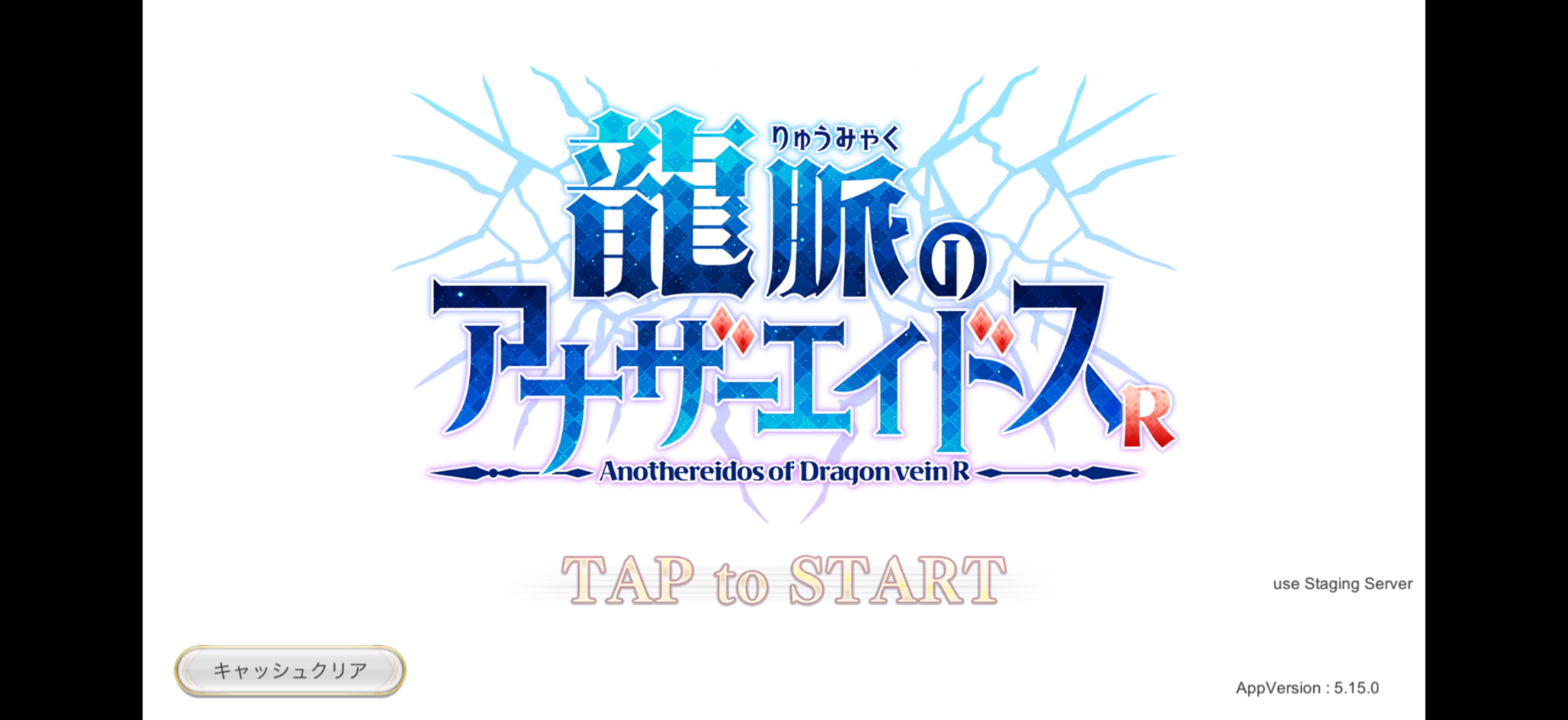
You are done when the title screen appears
On first launch the app downloads additional data. Please wait until it finishes.
About updates
Update information is announced in the patch notes on our official social media accounts.
Troubleshooting
QNothing downloads when I tap the button
If nothing happens after you tap “Free” or the “Install” button, try the following two fixes in order.
Remove the source and add it again
If old source information remains in AltStore, installation does not start. Remove the source once and add it again. Apps you have already installed are not deleted.
- Open the “Sources” tab in AltStore and tap “Edit” at the top right.
- Tap the red circle to the left of “Habbit. Co., Ltd”, then tap “Delete” on the right.
- On the confirmation screen, tap the button that removes the source.
- Tap the checkmark at the top right to finish editing.
- Add the source again in the same way as Steps 6–8.
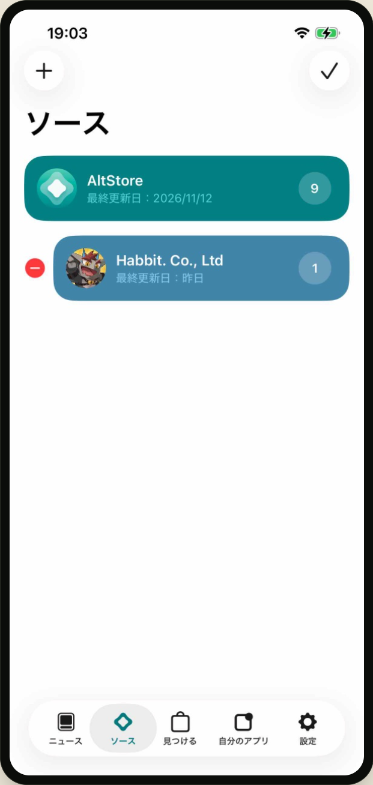 After tapping Edit
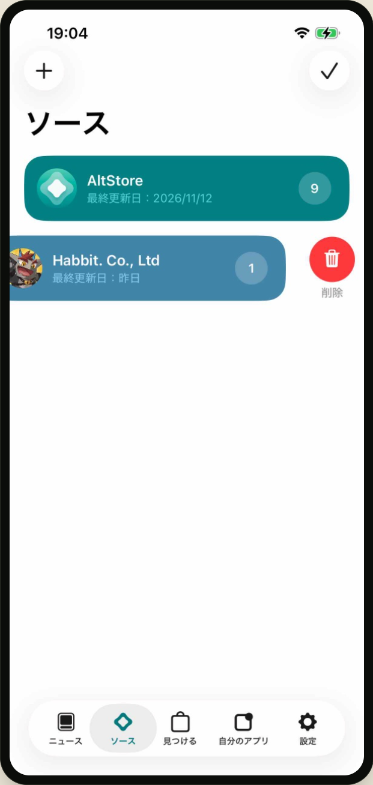 Delete button
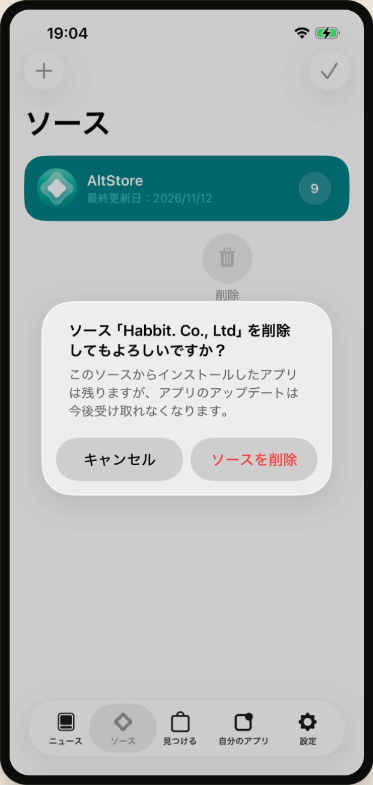 Delete confirmation
Reset the age rating setting
Even when the age rating setting already shows “Unrated”, it is sometimes not actually applied. Select a different rating once, then select it again. You do this in the Settings app on your iPhone.
- Open Settings → Screen Time → Content & Privacy Restrictions.
- Open “App Store, Media, Web, & Games” → “Apps”.
- Set the age rating to “18+” once, then select “Unrated” again.
- Quit AltStore, open it again, and install again from Step 10.
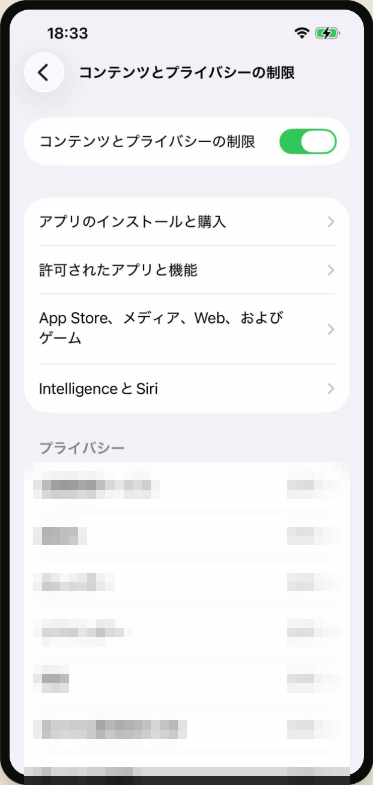 Content & Privacy Restrictions
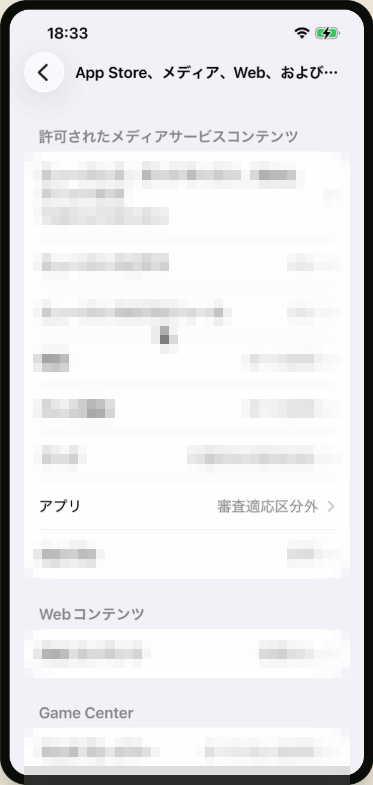 App Store, Media, Web, & Games
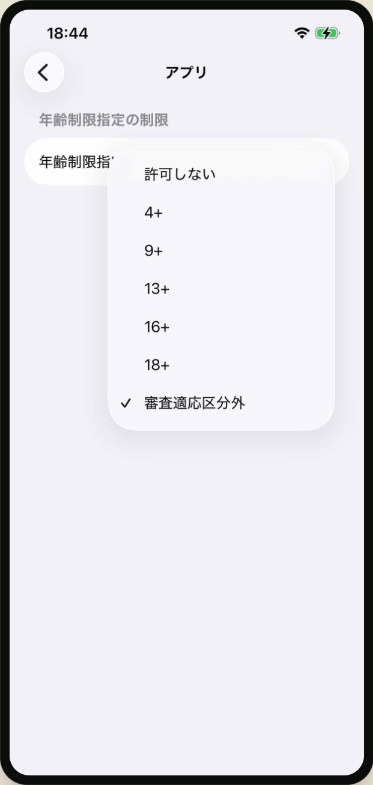 Age rating options
QI cannot update the app
Remove the source once and add it again. Apps you have already installed are not deleted.
Remove the source and add it again
If old source information remains in AltStore, installation does not start. Remove the source once and add it again. Apps you have already installed are not deleted.
- Open the “Sources” tab in AltStore and tap “Edit” at the top right.
- Tap the red circle to the left of “Habbit. Co., Ltd”, then tap “Delete” on the right.
- On the confirmation screen, tap the button that removes the source.
- Tap the checkmark at the top right to finish editing.
- Add the source again in the same way as Steps 6–8.
After tapping EditDelete buttonDelete confirmationQInstallation stops partway / the app does not start when I tap its icon
Check the age rating limit in Screen Time on your iPhone. For how to change it, see “If installation stops here” below Step 11.
The screenshots were taken on iOS 26. Button and item names may differ depending on your OS version and language. AltStore is a service provided by AltStore, LLC.
iPhone, iPad, App Store, and Safari are trademarks of Apple Inc. The iPhone trademark is used in Japan under license from Aiphone Co., Ltd.
iOS is a trademark or registered trademark of Cisco in the U.S. and other countries and is used under license.
Chrome is a trademark of Google LLC. Epic Games and Fortnite are trademarks or registered trademarks of Epic Games, Inc. in the U.S. and other countries.
Other company and product names mentioned are trademarks or registered trademarks of their respective owners.